Infrastructure
The Infrastructure screen (route /iac) is where declarations become real
infrastructure. Every change you make on the Games page sits
inert in the JSON configuration object until you run a plan here, approve
it, and apply it.
Plan, review, and apply infrastructure changes directly from the app.
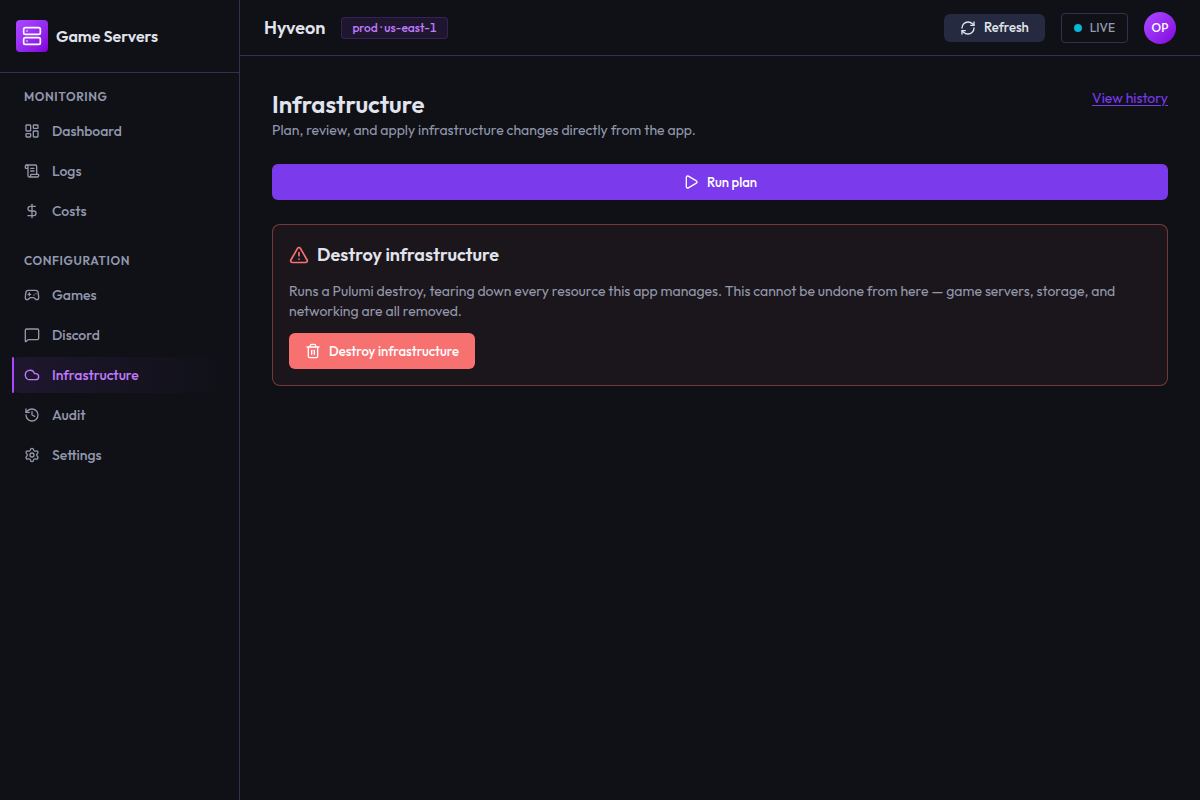
The workflow is a strict sequence, and each stage only unlocks the next:
Run plan → Approve plan → Apply
Destroy is a separate, deliberately isolated path at the bottom of the page.
Run plan
Run plan runs a Pulumi preview against the current configuration —
no operator-installed CLI binary, no config-file tree to read. PulumiService invokes
stack.preview() from the Automation API and writes the resulting plan
artifact (<runId>.plan.json) to disk so it can be applied later without
re-previewing. Output streams into the log viewer live (Waiting for plan output… until the first line arrives). The viewer auto-scrolls unless you
scroll up, and re-pins when you scroll back to the bottom.
Any sufficiently long (4+ characters) game-server environment value
declared in the deployment configuration is redacted to ***REDACTED***
before it reaches this log viewer or the persisted pulumi.log file —
Pulumi's own console output legitimately echoes stack outputs, which include
those values verbatim, so PulumiService scrubs them out of the streamed
text first. This applies identically during Apply below. Shorter values
are left as-is to avoid mangling unrelated log text with common short
strings. The same values remain visible in plaintext both on a game's
detail page and in the
add-game wizard's Environment step and the edit-game form's Environment
card, so this redaction only ever affects
the Pulumi run log, never how the value is declared, edited, or displayed
elsewhere in the app.
Only one Pulumi operation can run at a time. If something else is already running, the plan is refused — see Workspace busy.
The change-summary badges
Once Pulumi's preview finishes, badges appear next to the section heading, one per non-zero count:
| Badge | Colour |
|---|---|
N to create | cyan |
N to update | amber |
N to replace | outline (bordered, no fill) |
N to delete | red |
N other | purple (the app's primary colour) |
N unchanged | grey |
These come from Pulumi's own resource-change counts, not a parsed text
line. There is no truly blank state: if the structured change-summary event
was never observed for the run (or every op count, including unchanged,
is zero) you see the italic fallback Change summary unavailable instead of
badges; if Pulumi reports changes but every one of them is unchanged, you
see a single grey No changes — N unchanged badge instead of the create/
update/replace/delete/other row.
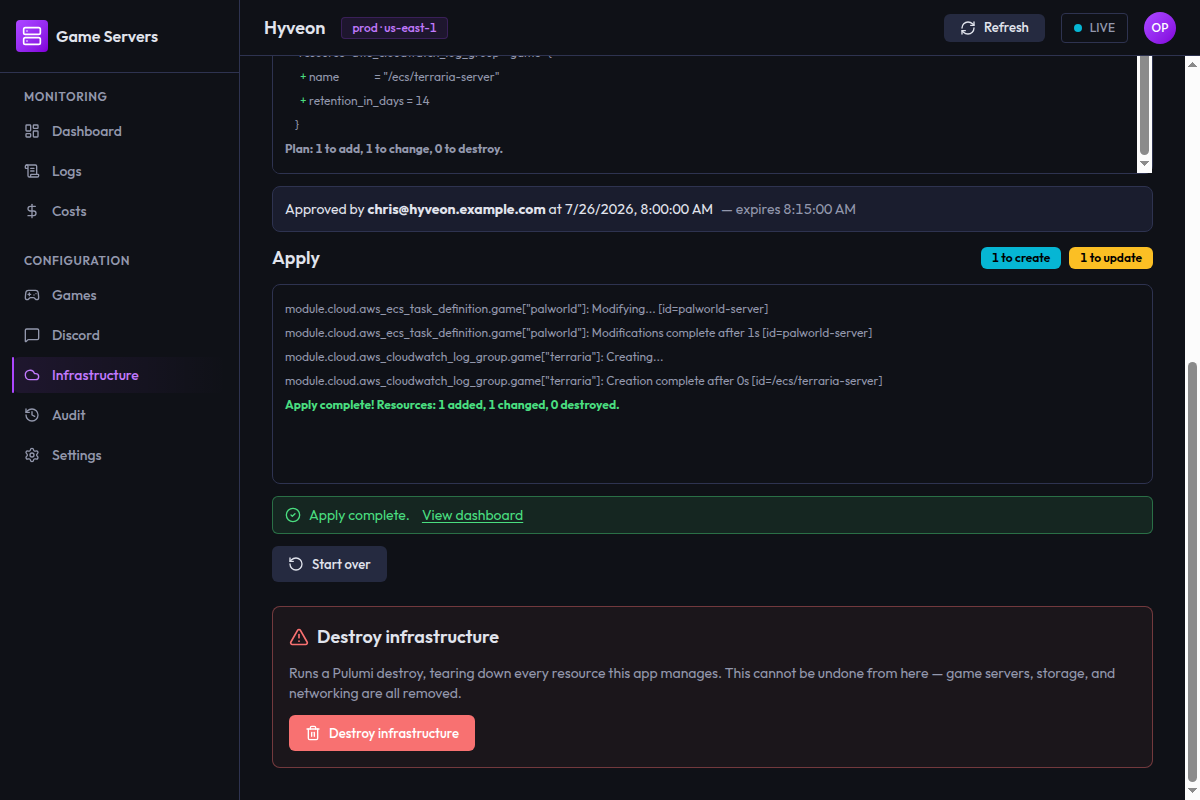
The same badges are reused for the Apply section, reflecting the counts from the actual update.
If the plan fails you get a red banner and a Start over button.
The approval gate
A successful plan does not apply itself. Instead an Approve plan button appears. Approval is a separate, recorded act — the approver's name is taken from the operating-system user running the app, never supplied by the page — so run history shows who signed off on what.
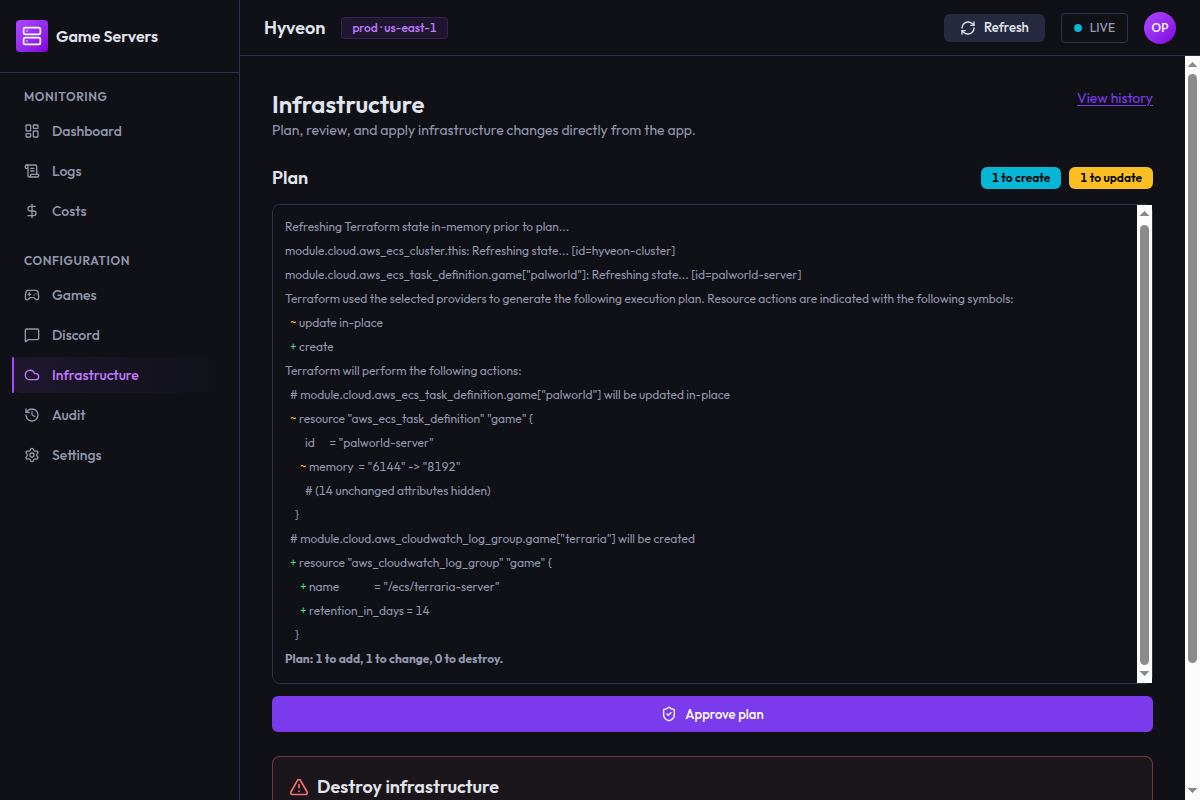
Approving shows a Plan approved toast and replaces the button with a panel:
Approved by chris at 26/07/2026, 14:03:11 — expires 14:18:11
The 15-minute expiry
An approval is valid for 15 minutes. After that the panel changes to:
Approved by chris at 26/07/2026, 14:03:11 — approval expired, re-approve to apply
and Apply greys out. A Re-approve button appears alongside it.
Re-approving is a single click and does not require a new plan — the same plan artifact is re-stamped with a fresh approval timestamp and the 15-minute clock restarts. The expiry exists so a plan cannot sit approved indefinitely while the world changes underneath it, not to force you to re-plan.
The countdown is re-evaluated roughly every 30 seconds, so the display can lag reality by up to half a minute.
Apply
Apply is gated on the plan hash. Before anything runs, the backend checks, in order, that:
- the run exists and is a plan run,
- it has been approved,
- the approval has not expired,
- the hash the page supplied matches the hash recorded at approval time,
- re-hashing the plan artifact on disk right now still produces that same hash — this hash covers both the plan artifact's bytes and the configuration object's version id at plan time, so a game edit landing between plan and apply invalidates the plan rather than silently applying against stale config.
That last check is the important one: it means the exact plan you looked at and approved is the exact plan that gets applied. If the artifact were modified or replaced between approval and apply, or the configuration changed underneath it, you get a plan-hash-mismatch error and nothing runs.
Apply reuses the plan's own run ID, so a plan and its apply share one lineage in run history. Output streams the same way.
On success you get a green panel reading Apply complete. with a View dashboard link, plus a toast.
A failed or aborted apply
An ordinary apply failure or abort shows a red banner: Apply failed — see the log above for details. (or was aborted for an abort).
If the run leaves any uncertainty about whether resources were already
mutated before it failed or was aborted — Pulumi's engine reports this as
partialApply on the run record, and the field is set proactively, before
stack.up() is ever called, so a failure can't hide it — you get a
different, more specific banner instead: Apply stopped partway through.
Its point is that the deployed infrastructure might no longer match the plan
you approved, so retrying that same apply is unsafe. The planHash check
only proves the plan artifact and configuration are unchanged since
approval — it says nothing about whether resources were already mutated by
a prior attempt. The banner deliberately offers no retry action, only a
Start over button, guiding you to run a fresh plan against current
state instead. The same partial badge appears next to the run's status in
run history — including for a run that aborted before any
resource step actually ran, since the marker is written before that risk is
known one way or the other, and the record stays non-retryable (kind: 'apply') either way.
This isn't only a UI nicety — the backend refuses the retry too, even if
someone tried to replay the same plan run's id directly. Before stack.up()
is ever called, PulumiService.apply writes a durable, in-doubt marker
record for the attempt (kind: apply, partialApply: true), so an apply
attempt for that plan is on record from the moment the durable lock is
acquired, not only once the run settles. If the attempt finishes cleanly,
the settlement write overwrites the marker in place; if it doesn't — a
partial apply, or even the settlement write itself failing to persist — the
marker (or whatever the settlement did record) is what's left, and it always
carries partialApply: true for the id in question. The apply gate checks
that flag on every submission and refuses a second apply() call against the
same plan run's id outright, before touching Pulumi again — a fresh
preview() against current state is the only way forward from there,
matching what the banner already tells you to do.
The workspace-busy banner
Only one Pulumi operation can hold the shared workspace at a time — Pulumi's
own operation names are preview/up, which the busy banner relabels to
the familiar plan/apply terms:
Workspace busy — a
planrun is already in progress. Try again once it finishes.
It appears under whichever action you attempted (plan, apply or destroy), with the raw backend error stacked below it. Wait for the in-flight run to finish and try again.
Apply additionally takes a durable lock that self-releases after one hour, so a crashed apply cannot wedge the workspace permanently.
Stale run locks
Apply and destroy (never plan — plan only takes the in-memory workspace lock, not the durable one) acquire this durable run lock for the duration of the run. If a submission is refused because that lock is already held, the workspace-busy banner names the holder — initiator, run kind, and how long ago it was acquired — and, unlike the plain workspace-busy case above, offers an inline Clear lock and retry action gated behind a confirmation dialog. The confirmation dialog spells out the risk: clearing a lock that turns out to belong to a genuinely active run elsewhere lets two Pulumi updates race against the same state and can corrupt it, so only confirm when you're confident the holder is abandoned (e.g. the app that held it crashed). Like the stale-lock recovery below, clearing does not resubmit your operation for you — retry manually via the plan/apply/destroy button once the lock is gone.
Stale Pulumi backend locks
Because state locking is handled by the S3 backend itself (a lock object, not a DynamoDB table — see the infra program reference), a crashed process can occasionally leave a lock the backend still considers held. When a submission is rejected for this reason (distinct from the ordinary workspace-busy case above) you get a banner naming the stack and every lock holder — username, hostname, PID, and how long ago it was taken — with a Clear lock and retry action gated behind a confirmation dialog. Only clear a lock you recognize as genuinely abandoned; clearing a lock that turns out to be a real in-progress run elsewhere risks two updates racing against the same state.
Start over
Start over appears after a failed plan, or once an apply reaches any terminal state. It resets the page back to its initial "Run plan" state.
It is purely a UI reset. It does not cancel anything, delete any run record, revoke an approval, or remove the plan artifact — those all persist in run history. It also leaves the Destroy section untouched.
Destroy
An always-visible red-bordered panel at the bottom of the page:
Destroy infrastructure
Runs a Pulumi destroy, tearing down every resource this app manages. This cannot be undone from here — game servers, storage, and networking are all removed.
Pressing Destroy infrastructure opens a confirmation dialog:
Destroy all managed infrastructure?
This tears down every resource this app manages — game servers, storage, and networking. It cannot be undone from here. Type "destroy infrastructure" to confirm.
You must type exactly:
destroy infrastructure
The match is case-sensitive and exact. Only then does the Destroy button become clickable.
Behind the scenes there is a second gate: confirming mints a single-use token that expires after five minutes. If the destroy is somehow submitted without a fresh token it is refused outright. There is no plan/approve cycle for destroy — the typed phrase plus that token is the whole gate. Destroy also runs against a no-op inline program (it never reads the configuration object), so it still works even if that object is missing or malformed.
The destroy run streams into its own log viewer and ends with a green Destroy complete. panel. There is no "Start over" for destroy — reload the page to reset the section.
Run history
The View history link in the page header opens /iac/history.
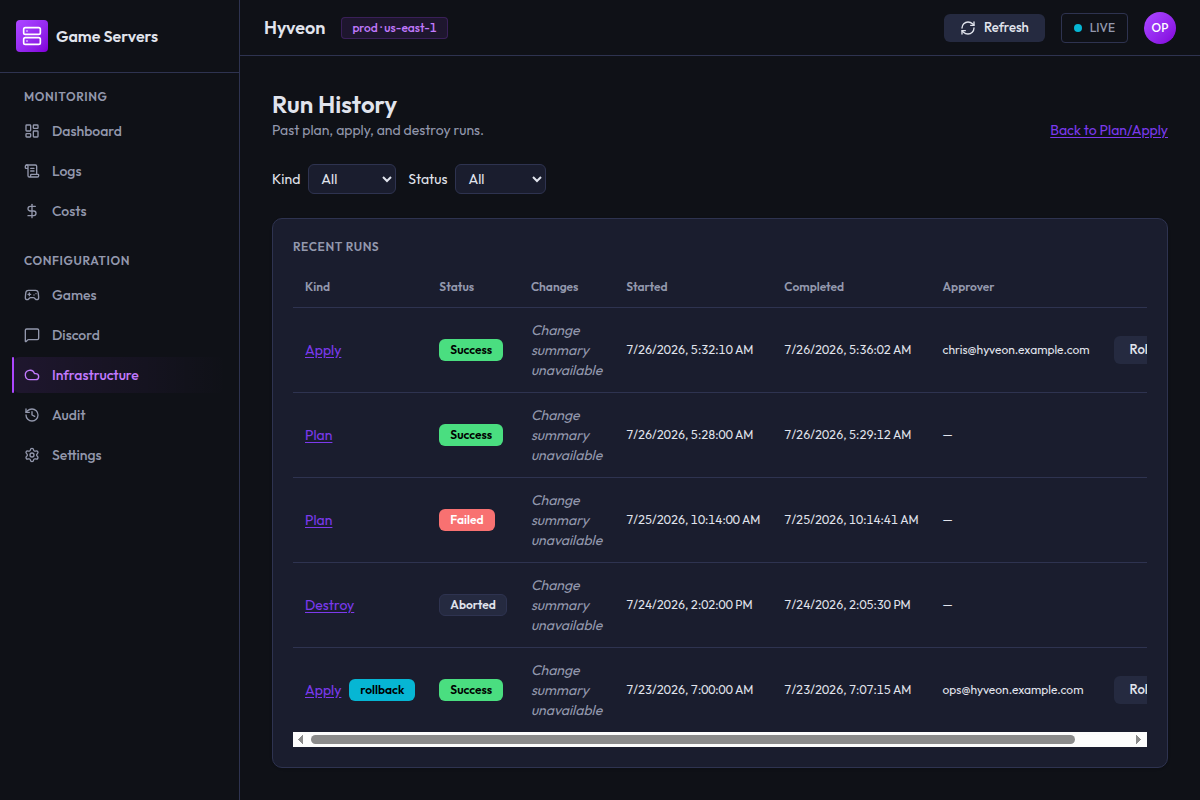
Past plan, apply, and destroy runs.
| Column | Contents |
|---|---|
| Kind | Plan, Apply or Destroy, linked to the run's detail page. Rollback-triggered plans carry an extra cyan rollback badge |
| Status | Success (green), Failed (red) or Aborted (grey). An apply that mutated resources before failing/aborting carries an extra amber partial badge — see A failed or aborted apply |
| Changes | The same change-summary badges shown on the run itself (plan, apply, and destroy alike) — Change summary unavailable, a grey No changes — N unchanged badge, or the create/update/replace/delete/other/unchanged row |
| Started | Local timestamp |
| Completed | Local timestamp |
| Approver | The OS username that approved it, or — |
| (unlabelled) | The Rollback button, on apply rows only |
Aborted means the run was cancelled or never reported an exit code;
Failed means it exited non-zero. There is no Running status in history —
records are only written once a run has finished.
Two filters:
| Filter | Options | Applied |
|---|---|---|
| Kind | All, Plan, Apply, Destroy | Client-side, to rows already fetched |
| Status | All, Success, Failed, Aborted | Server-side — changing it re-queries and resets the list |
Because Kind filtering happens after fetching, a kind-filtered view can show fewer than a full page of rows while more still exist. Press Load more.
Pagination is cursor-based: 25 runs per page, appended by the Load more button, which disappears when there is nothing left. Only the Kind cell is a link — clicking elsewhere in a row does nothing.
| State | Copy |
|---|---|
| Loading | Loading… |
| Initial fetch failed | Could not load the run history. |
| Nothing matches | No runs match the current filters. |
| A Load more failed | Could not load more run history. below the table |
Run detail
Clicking a run's kind opens /iac/history/:runId.
This page is strictly read-only. It shows the run's kind, status, start/completion times, the approver, any rollback provenance, and the captured log — and it never offers Approve or Apply. Every record in history describes a run that has already finished, so there is nothing to approve.
The log is resolved from whichever source still has it: the run's log file on this machine, an inline copy stored on the run record, or a link to an offloaded copy in S3. If none of those exist you see:
This run has no replayable, inline, or offloaded log.
Why an old run can 404
No run history record was found for "…".
This page finds its record by searching the most recent runs rather than looking it up by ID, and that search is capped at the 100 most recent runs. A run older than that will 404 when you open (or refresh) its detail page directly, even though it is still reachable by paging through the history list.
The records themselves are not being deleted — they live in DynamoDB with no expiry. The other cause of a 404 is that the runs table has not been deployed at all, in which case every run detail page 404s.
Rollback
Apply rows that recorded which configuration version they were built from
get a Rollback button. Rollback restores the configuration object
(deployment-config.json) that was live before that apply.
It is a two-step flow.
Step 1 — Resolve. Pressing Rollback looks up the target version. This
is read-only; nothing is written. If it cannot find one you get an inline
error such as Could not resolve a rollback target., or a specific reason
(no recorded configuration version id for that apply, or the historic
version has aged out of S3).
Step 2 — Confirm. A dialog appears naming the target version and asking you to confirm restoring it as the new head, then queuing a plan against it. The current head is not deleted — history is append-only. There is no type-to-confirm here; Roll back is enabled immediately.
Rollback is append-only. The historic configuration content is written as a new version at the head of the object's history. Nothing is deleted or reverted, so you can always roll forward again by rolling back the rollback.
A rollback does not change your infrastructure by itself. Confirming restores the configuration object and then drops you on the Infrastructure page with a plan already running against the restored config — but that plan goes through the normal gates. You must still approve it and apply it. Until you do, your declared configuration and your deployed infrastructure disagree.
The resulting plan is tagged: it shows Rollback of apply run <id> on the
Infrastructure page, and its row in run history carries the cyan rollback
badge.
Related reading
- Infra program reference — every file and resource the Pulumi program declares.
- Audit — plan, approve, apply, destroy and rollback all leave audit entries.