Games
The Games screen (route /games) is where you declare what servers exist. It
is the app's editor for gameServers in the versioned JSON configuration
object (deployment-config.json, in your S3 configuration bucket) — there
is no separate variables file any more.
Creating, editing or removing a game only updates the JSON configuration object. Nothing changes in AWS until a plan/apply run.
Adding a game does not create a task definition. Removing one does not delete anything — the deployed task definition, EFS access point and security-group rules stay live. Editing CPU or ports does not touch the running server.
Every one of those changes is inert until you go to Infrastructure and run plan → approve → apply.
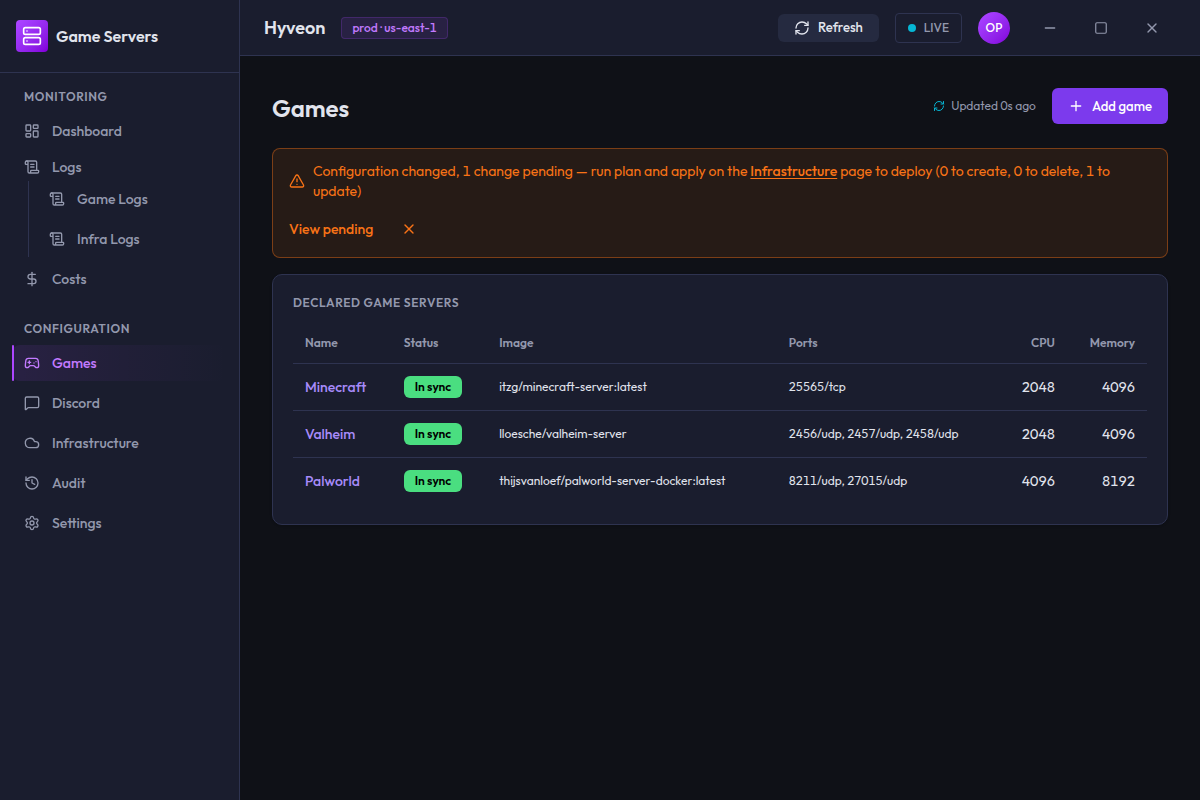
The games table
The card is titled Declared game servers. One row per game, listing everything declared in the configuration object first, then anything deployed but no longer declared.
| Column | Contents |
|---|---|
| Name | The game name, linked to its detail page |
| Status | One chip — see below |
| Image | The container image, or — |
| Ports | 25565/tcp, 25575/tcp, or — (an ICMP entry shows the same way, e.g. 8/icmp). An HTTPS game leads with its web port, e.g. 30000 (web), 25565/udp |
| CPU | Fargate CPU units, or — |
| Memory | MiB, or — |
The table has no sorting and no filter box. Only the name cell is clickable — clicking elsewhere in the row does nothing.
The page fetches once when you open it. Navigate away and back to refresh it.
Loading, error and empty states
| Situation | What you see |
|---|---|
| Fetch in flight | The card's normal loading placeholder, no table yet |
| Fetch failed | Failed to load games: <error> in place of the table |
| No games declared or deployed | No games declared or deployed yet., with an Add game button beneath it (hidden while a resumed draft is open) |
Status chips
Exactly one chip per game.
| Chip | Meaning | Cause |
|---|---|---|
| In sync (green) | Declared in the configuration object and present in the last-applied Pulumi stack outputs, with matching config | Normal, healthy |
| Config drift (amber) | Declared and applied, but one or more fields (image, CPU, memory, ports, volumes) differ between the declared config and what was last applied | You edited the game after the last apply |
| Pending deploy (amber) | Declared in the configuration object, not yet in the applied outputs | You added or changed it but have not applied yet |
| Undeclared (red) | In the applied outputs, but no longer in the configuration object | You removed it from the configuration object but have not applied the removal |
"Undeclared" is the one that surprises people. It means the game is still live in AWS — its task definition, EFS access point and log group all still exist and can still be started — but there is no declaration for it any more. The usual cause is having pressed Remove game without running a plan/apply afterwards.
"Config drift" compares against the last-applied Pulumi stack snapshot, not live AWS state. It flags "this field was edited since the last apply", not "someone changed the running task out-of-band from the AWS console" — the app never reads live ECS/EFS state for this comparison. Hover the chip's tooltip to see which fields changed; running a plan/apply from Infrastructure resolves it the same way it resolves Pending deploy.
Because there is no declaration, an undeclared row has no config to show: its
Image, Ports, CPU and Memory columns are all —. Applying a plan is what
actually tears it down.
The pending-changes banner sits above the table and summarises the same drift in counts.
Adding a game
Add game opens a six-step dialog titled Add a game server, with the
current step shown as Step 1 of 6: Identity.
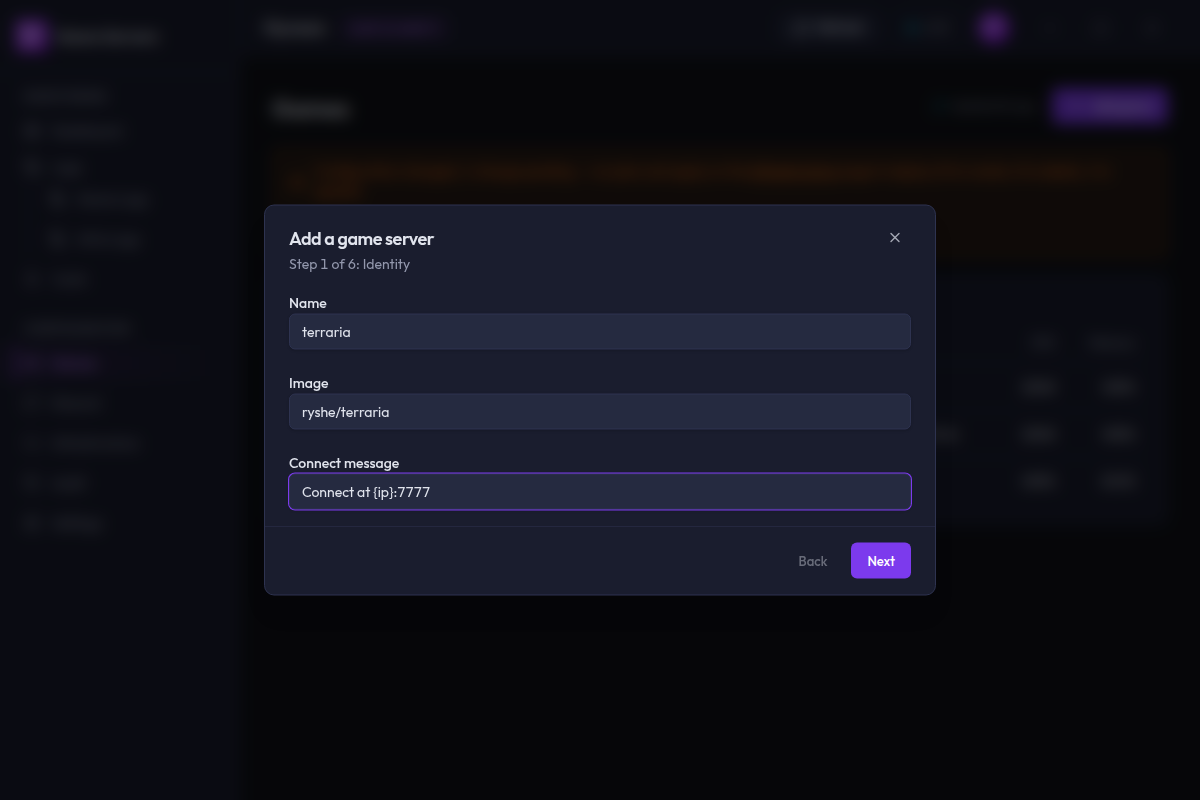
Step 1 — Identity
| Field | Example | Rules |
|---|---|---|
| Name | minecraft | Required. Must be a lowercase alphanumeric DNS-safe label (letters, digits, and internal hyphens only, 1-32 characters, no leading/trailing hyphen). Must not duplicate an existing declared game |
| Image | itzg/minecraft-server | Required |
| Connect message | Connect at {ip}:25565 | Optional. Only the placeholders {host}, {ip}, {port} and {game} are allowed |
For an HTTPS game the Discord connect message never shows a game port: {host}:{port} is rendered as https://{host} (when the host is known), and a bare {port} renders as 443. Neither the web port nor an additional port is substituted.
The name becomes the gameServers map key, the task-definition family
({name}-server), the log group (/ecs/{name}-server) and the DNS label —
which is why it is validated as an identifier and why it cannot be changed
later.
Step 2 — Resources
Two sliders, no free text: vCPU and Memory. Each slider snaps to the valid Fargate tiers below rather than any free value, so the memory slider is disabled until you pick a vCPU and is then rebuilt from that choice. Changing the vCPU after the fact resets the memory if the current value is no longer valid for the new tier.
| CPU units | Valid memory (MiB) |
|---|---|
| 256 | 512, 1024, 2048 |
| 512 | 1024 – 4096, in steps of 1024 |
| 1024 | 2048 – 8192, in steps of 1024 |
| 2048 | 4096 – 16384, in steps of 1024 |
| 4096 | 8192 – 30720, in steps of 1024 |
| 8192 | 16384 – 61440, in steps of 4096 |
| 16384 | 32768 – 122880, in steps of 8192 |
1024 CPU units is 1 vCPU. Because the sliders are generated from this table,
the wizard cannot offer you an invalid pairing. A live estimated hourly cost
($X.XXXX/hr while running) appears below the sliders and recomputes as
either slider moves, so you can see the cost impact of a resource change
before submitting.
Step 3 — Networking
Declare every container port the server listens on.
Starts empty. Add port appends a row with a Container port number field, a Protocol dropdown (TCP / UDP / ICMP, defaulting to TCP), and a Visibility dropdown (Public / VPC-only, defaulting to Public). Each row has its own Remove button.
Public ports are open to the whole internet, same as before this control existed. A port set to VPC-only is reachable only from inside the VPC — useful for a management/REST port a game exposes for the health check below, so the internet can't reach it but an in-VPC component (like the authoritative health check) still can. Note that this is VPC-wide reachability, not scoped to any one caller — see Infra program reference for the security-group detail.
ICMP entries (ping reachability)
Selecting ICMP for a row relabels the numeric field ICMP type instead of Container port, prefills it with 8 if it's still blank, and shows a hint underneath: "8 = echo request (ping)". An ICMP row never becomes an ECS port mapping — it only opens an ICMP ingress rule on the security group, for the type you declared (0–255; 8 is a standard ping). This is for a game whose community or server-browser tooling pings the server to check it's alive (Palworld's server browser is the reference case): declaring { "container": 8, "protocol": "icmp" } opens ICMP echo without exposing or mapping any container port for it. The numeric field enforces the same 0–255 range as any other ICMP type — entering an out-of-range value blocks the step with ICMP type must be an integer between 0 and 255.
An icmp entry cannot be combined with https: true on the same game — the existing rule that a port on an HTTPS game must be tcp or udp still applies (see below), so switching a game to HTTPS with an ICMP row declared blocks the step.
Two collision checks run continuously:
- Against the other ports in this same game:
Port 25565/tcp collides with ports[0] in the same game server. - Against every other declared game:
Port 25565/tcp collides with existing game "minecraft".
Both are hard blocks. The cross-game check exempts icmp: the same pair (e.g. 8/icmp) is allowed on more than one game as long as every declaration shares the same effective visibility — the security group dedupes identical icmp rules into one, so there's nothing to collide over. A visibility mismatch is still rejected, naming both games: Port 8/icmp on game "minecraft" conflicts with existing game "palworld": effective visibility must match across games for icmp entries (one is "public", the other "internal"). A repeated icmp pair within the same game still hits the first (same-game) check above. Note that zero ports is technically allowed by the wizard — you can advance without adding any — but a server with no declared ports will not be reachable.
Below the port rows, an Enable HTTPS (Caddy sidecar) checkbox sets the game's https flag. Checking it shows an amber warning: enabling HTTPS opens ports 443 and 80 to the internet for the whole stack, not only this game; the web port is not directly reachable from outside (it is reached through the sidecar on 443); additional ports follow their own visibility; and on first boot the task performs a Let's Encrypt (ACME) issuance, which requires the game's hostname to resolve to the running task.
Checking it also changes the rest of the step:
- A required Web port number field appears. It is the port your game's web server listens on inside the task (for example
30000for Foundry VTT). Caddy serves it publicly on 443 and proxies to it.80and443are rejected, because Caddy binds them in the shared task network namespace (webPort 443 is reserved: Caddy serves ports 80 and 443 publicly on an https = true game server. …). The value must be an integer from 1 to 65535. - The port list is relabeled Additional ports (optional) and may be empty (
No additional ports.; the button reads Add additional port). Use it for ports that must be reachable on their own, such as a UDP game or voice port. Each row keeps its own Protocol and Visibility, and the Visibility setting is honoured: aPublicextra is open to the internet and aVPC-onlyextra is reachable only from inside the VPC. The web port itself never gets a direct ingress rule. - A
tcpadditional port that repeats the web port is rejected (ports[0] duplicates webPort 30000/tcp; webPort is already served through Caddy, so list only additional ports here.), and 80/443 on an additional port are still reserved. ICMP rows are still not allowed on an HTTPS game.
An HTTPS game no longer needs a port list at all: the old rules that it must declare at least one port and that its first port must be tcp are gone, replaced by the required Web port. Leaving the field blank blocks the step with An https = true game server must declare webPort, the port its web server listens on (e.g. 30000 for Foundry VTT).
Before the explicit web port existed, an HTTPS game's ports[0] was the implicit Caddy upstream and none of its ports received an ingress rule. Additional ports of an HTTPS game are now ingressed per their visibility.
A saved HTTPS game that has no webPort is treated as the legacy shape. When the app reads the configuration (and when it loads a saved wizard draft), it promotes ports[0] to webPort and keeps the remaining entries as additional ports. This is deprecated read-time compatibility only: it is not written back until you next save the game, and it is slated for removal once no supported release can have written the old shape. If the legacy ports[0] is not tcp, nothing is rewritten and validation asks you for a web port instead.
Release note: because the former ports[1..] of a legacy HTTPS game had no ingress before, they become publicly (or VPC-only, per their visibility) ingressed on the next apply. Review the plan on the Infrastructure page before applying: the preview lists the new security-group rules.
Health check (optional)
Below the HTTPS toggle, an Enable authoritative health check checkbox lets you judge this server active/idle by an HTTP request instead of network traffic — for a game whose management API can answer the question directly (Palworld's REST API is the reference case), rather than relying on the network-traffic heuristic every other game uses. Leaving it off keeps that default heuristic unchanged.
Checking it exposes:
| Field | Purpose |
|---|---|
| Scheme | http or https |
| Port | A dropdown constrained to the ports declared above — you cannot target a port this game doesn't expose. On an HTTPS game the web port is listed first as <port>/tcp (web port), followed by the additional ports |
| Method | GET, POST, PUT, PATCH, or HEAD |
| Timeout (ms) | 100–10000. Bounds the entire request as one wall-clock budget |
| Request path | Rooted at /, e.g. /status |
| Response JSON path | A field path into the JSON response body, e.g. players.online (plain field access and numeric array indices only — no wildcards) |
| Operator | equals, notEquals, greaterThan, lessThan, contains, or exists. exists hides the comparison-value field entirely — it only tests whether the path resolves to anything |
| Comparison value | Compared against the resolved value; hidden when the operator is exists |
| Credential type | None / Raw ARN / Basic / Bearer — see below |
Two validations key off this block: a declared port not among this game's
own ports (healthCheck.port <N> is not among this game server's declared tcp ports or its webPort.), and a comparison operator declared without a value
(healthCheck.activeWhen.value is required for operator "<op>"; only "exists" takes none.).
Credential type decides who owns the secret, and how it's injected. The
resolved secret's value becomes the request's Authorization header, built
per type: Raw ARN injects the value verbatim, no prefix; Bearer
injects Bearer <value>; Basic injects Basic <base64(username:password)>.
| Credential type | What you enter | Who owns the secret | Authorization header |
|---|---|---|---|
| None | Nothing | No credential is sent | — |
| Raw ARN | The ARN of a Secrets Manager secret you already manage | You. The app only reads its value — create, rotate and delete it yourself | The secret's value, verbatim |
| Basic | Username and password | The app. It stores {"username", "password"} as JSON in a secret it creates and manages for you | Basic <base64(username:password)> |
| Bearer | A token | The app. It stores the token as a secret it creates and manages for you | Bearer <token> |
For Basic and Bearer, the app names the secret deterministically
(hyveon-{game}-healthcheck-auth, one per game) and creates or updates it
itself when you save — you never see or enter an ARN for those two types.
The credential value never comes back. Every credential field (ARN, username, password, token) renders blank when you re-open the wizard or edit form. Whether one is already configured is signaled only by "a credential is already set" next to the Credential type selector — never the value, and independent of which type it was saved as.
Omitting vs. clearing on an edit works like every other secret field: leaving the fields for the current type blank keeps the existing credential unchanged; switching to None and saving clears it (deleting the app-owned secret first if the previous credential was Basic or Bearer). Switching from Basic/Bearer to Raw ARN and entering a new ARN also deletes the now-orphaned app-owned secret — but selecting Raw ARN and leaving that field blank counts as "unchanged," so the prior Basic/Bearer secret is left in place and still referenced. Removing the game entirely always deletes its app-owned secret, if any.
Step 4 — Storage
Two sections.
Volumes — "Every game server needs at least one EFS-backed volume for its save data." The step starts with one row prefilled as data → /data. Each row has a Volume name and a Container path; a hint under the path reminds you to use the save-data path from the game's Dockerfile or docs. The path must be absolute. The Remove button is disabled once only one row remains; you cannot go below one volume.
File seeds — "Optional — files written into a volume the first time the server starts." Each row has:
| Field | Purpose |
|---|---|
| Path | Absolute path inside the container, e.g. /data/config.yml |
| Content | Plain-text file contents |
| Content (base64) | Base64-encoded contents, for binary files |
| Mode | Unix mode, e.g. 0644 |
File seeds can be removed down to zero. Blank fields are dropped entirely rather than written as empty strings.
Seed from folder — "Optional — copy a local folder into a volume after the game is deployed." This is a separate section below the file seeds, and it does not touch them.
Use it when the data is too big to inline, such as a 1.2 GB Config and Data tree.
See Seeding a volume from a folder.
Step 5 — Environment
Optional — environment variables injected into the container (e.g.
EULA=TRUE).
Starts empty, with No environment variables configured. shown until you add
a row. Add variable appends a row with a Variable name field and a
Value field (both plain text). Like ports, there is no minimum — zero
variables is valid, and every row's Remove button stays enabled all the
way down to zero.
Two rules apply to the name field only — any string value is accepted for value:
- A name must not be empty:
environment[0].name must not be empty. - A name must not repeat another row's name in the same entry:
environment[1].name "EULA" duplicates an earlier environment variable in the same entry.
There is no character-set or casing restriction on the name (unlike the game Name field in Step 1) — container images vary too much to assume a universal naming convention, unless the value uses the public IPv4 token below, which imposes its own name restriction.
Interpolation tokens
A hint under the section heading lists two tokens you can embed in a Value field:
| Token | Resolves to | When |
|---|---|---|
${hyveon.network.public-address} | The game's public DNS hostname, <game>.<zone> | Deploy time — stable across restarts |
${hyveon.network.public-ipv4} | The task's public IPv4 | Container boot — changes on every restart |
Prefer the hostname token whenever the game accepts a hostname — it doesn't
need re-resolving after a restart. Any other ${...}/{...} text (shell
variable syntax, template placeholders your image expects) is left alone;
only ${hyveon.*} sequences are inspected. An unrecognized one is rejected
under the value field: Unknown token "${hyveon.foo}" in environment[0].value; allowed tokens are ${hyveon.network.public-address} and ${hyveon.network.public-ipv4}.
Using the IPv4 token has two extra requirements, because there's no way to inject a resolved IP into an already-running container — Hyveon has to discover it after the task starts and splice it in before the game's own process launches:
- The variable's name must be a plain shell identifier — letters,
digits, underscore, not starting with a digit — because it's re-exported as
a shell
exportstatement:environment[0].name must be a valid shell identifier (letters, digits, underscore; not starting with a digit) to use ${hyveon.network.public-ipv4}. - You must fill in the Start command editor below (see next section):
command is required when ${hyveon.network.public-ipv4} is used: the boot-time IP resolver replaces the image's built-in start command.
Start command
Below the environment rows, an optional Start command editor lets you
declare the image's own start command argument-by-argument (Add
argument appends a blank field; each has its own Remove). Leave it
empty and the image's built-in ENTRYPOINT/CMD runs as normal.
Filling it in only matters when a value above uses the IPv4 token: at boot,
Hyveon replaces the image's built-in start command with a small resolver
script that retries an IP-echo lookup (wget, falling back to curl, up to
30 times), exports the token-bearing variables with the discovered address
spliced in, then execs the start command you entered here — so the image
needs a POSIX shell environment (BusyBox is sufficient) with wget or curl
for this to work. If the address
can't be discovered after all retries, the resolver exits non-zero instead
of launching the game, so the server never comes up with a broken address
silently baked in.
Pin hostname (Node.js only)
At the bottom of the step, a Pin hostname switch is off by default. It only works for game servers whose process runs on Node.js. It has no effect on any other runtime, so you need to know what your image actually runs before you turn it on.
Use it for a Node-based game whose license is bound to the hostname, such as Foundry VTT.
A Fargate task gets a new container hostname on every start, so a hostname-bound license would otherwise fail to verify each time.
With the switch on, the game's Node process always sees the hostname you choose when it calls os.hostname().
Hyveon does this by preloading a small script through NODE_OPTIONS; no image change is needed.
If you also declare your own NODE_OPTIONS variable, Hyveon keeps your flags and puts its preload first, so you do not need to remove yours.
| Control | Behaviour |
|---|---|
| Pin hostname switch | Turning it on fills the Hostname field with the game's name from Step 1. Turning it off clears the value, so the saved entry has no pinned hostname at all |
| Hostname field | Appears only while the switch is on, and is editable. Allowed: letters, digits, ., _ and - only, 1-63 characters, starting and ending with a letter or digit. Anything else, including an empty field, shows an error under the field and blocks Next |
The pre-filled value is copied from the name once, at the moment you flip the switch. It does not follow later edits to the game name, so change the field yourself if you rename the game before submitting.
When the switch is on, you cannot declare a volume whose container path is /hyveon/hostname-shim or anywhere under it, because Hyveon mounts its preload script there. The game name and volume names also can't be hostname-shim while it's on, because Hyveon uses that name for its helper container and volume.
The Storage step shows an error against that volume.
Two caveats to know before you rely on it:
- Turning it on for an existing game needs the EULA accepted once more. A host that the license was previously signed for may avoid this, but that is unverified, so plan on accepting it. After that one acceptance, later starts should verify without a prompt, but that depends on the game version and how it checks its license.
- It depends on the game reading its host name through
os.hostname(). If a future release of the game stops doing that, the pin stops working and the game goes back to asking for the EULA on each start. Nothing is lost when that happens; your data is untouched.
The edit-game form reuses this same control, loaded with the game's current value. Like every other change on this screen, pinning only updates the configuration object until you plan and apply from Infrastructure.
Step 6 — Review
A read-only summary in four cards — Identity, Resources, Networking, Storage — showing exactly what will be written. The Networking card's health-check sub-section (present only when one is enabled) shows the request shape and condition, and whether a credential is set — never the credential's value or ARN, the same convention the Storage card follows for file-seed contents. The Storage card lists file-seed paths only (contents are never displayed) and, underneath, an Environment variables list of name/value pairs — both sub-sections are omitted entirely when empty rather than shown blank. When Pin hostname is on, the Storage card also lists a Pinned hostname row with the value; with the switch off the row is absent.
On an HTTPS game the Networking card shows the HTTPS row, then a Web port row, followed by an Additional ports list (No additional ports. when empty) instead of the plain Ports list.
The footer button reads Submit.
On success you get a minecraft created toast and are taken straight to the
new game's detail page. The game appears in the table as Pending deploy
until you apply.
If you chose a folder to seed, the toast also reminds you to upload it from the game page after the apply.
The wizard never runs plan or apply, and it never uploads anything itself.
How validation behaves
Errors appear as you type, not on blur or on submit. Next is disabled whenever the current step has any error; problems on other steps do not block you until you reach them.
On the Review step, Submit is disabled unless the whole draft is clean.
If the server rejects the submission, the dialog stays open with your draft intact and jumps to whichever step the first problem belongs to, with the message rendered against the offending field.
Draft autosave
Once you start typing, the wizard autosaves your in-progress draft — field values and which step you're on — about one second after you stop editing. Nothing is written for a wizard you open and immediately close without touching a field, and autosave pauses while a submission is in flight. If you close the dialog (Escape, overlay click, or the close control) less than a second after your last keystroke, the close itself flushes that pending save immediately rather than waiting for the debounce timer.
Autosave is best-effort, not guaranteed: it's written to local disk via the same store as the rest of the app's settings, and a save that fails (disk full, permissions, or any other write error) is logged and silently dropped rather than retried or surfaced to you — the wizard never interrupts you mid-edit over it. In the normal case, the debounce-plus- flush-on-close behavior above means you'd lose at most a few seconds of typing, but a persistently unwritable store means autosave doesn't help at all for that session.
Environment variable values and file-seed contents you type in are not included in what's autosaved or restored — see Draft resume and secrets below.
The draft is saved by the Electron main process, not kept in the page's own React state — so it survives more than just navigating away and back. Quitting and relaunching the whole app still leaves it in place. The next time you open the Games page, an orange banner appears above the table:
Unfinished draft:
<name>— Resume / Discard
Resume reopens the wizard pre-filled at the step you left off on. Discard deletes the saved draft and hides the banner without opening the wizard. The banner never opens the wizard on its own — resuming is always something you click.
There is only one draft slot: starting a second add-game draft (via Discard, then Add game again) overwrites whatever was saved before. Submitting successfully clears the saved draft along with the in-memory one; a failed submission (validation, conflict, or server error) leaves it in place so you can retry. If the saved entry is ever unreadable — for example after an app update changes its shape — it's treated as if no draft exists: the Games page loads normally and no banner appears.
This persistence is specific to the add-game wizard. The edit-game form does not autosave a draft, because it is always re-seeded from the live declared configuration when you open it — there is nothing to recover that reopening the form doesn't already give you.
Draft resume and secrets
Environment variable values (the Environment step), file-seed contents (the Storage step's file rows), and every health-check credential field — ARN, username, password, token (the Networking step's health-check block) — are never included in a resumed draft — only the variable/file names, the chosen credential type, and whether a credential is set, come back. If you'd typed a database password, a health-check credential ARN or basic/bearer credential, or other sensitive value before closing, you'll need to re-enter it after clicking Resume. This is deliberate: those fields are the most likely to hold something you'd consider a secret, so the app strips them out of what's read back to the wizard rather than round-tripping them through the Electron IPC layer on every resume.
The game detail screen
Clicking a name opens /games/:name.
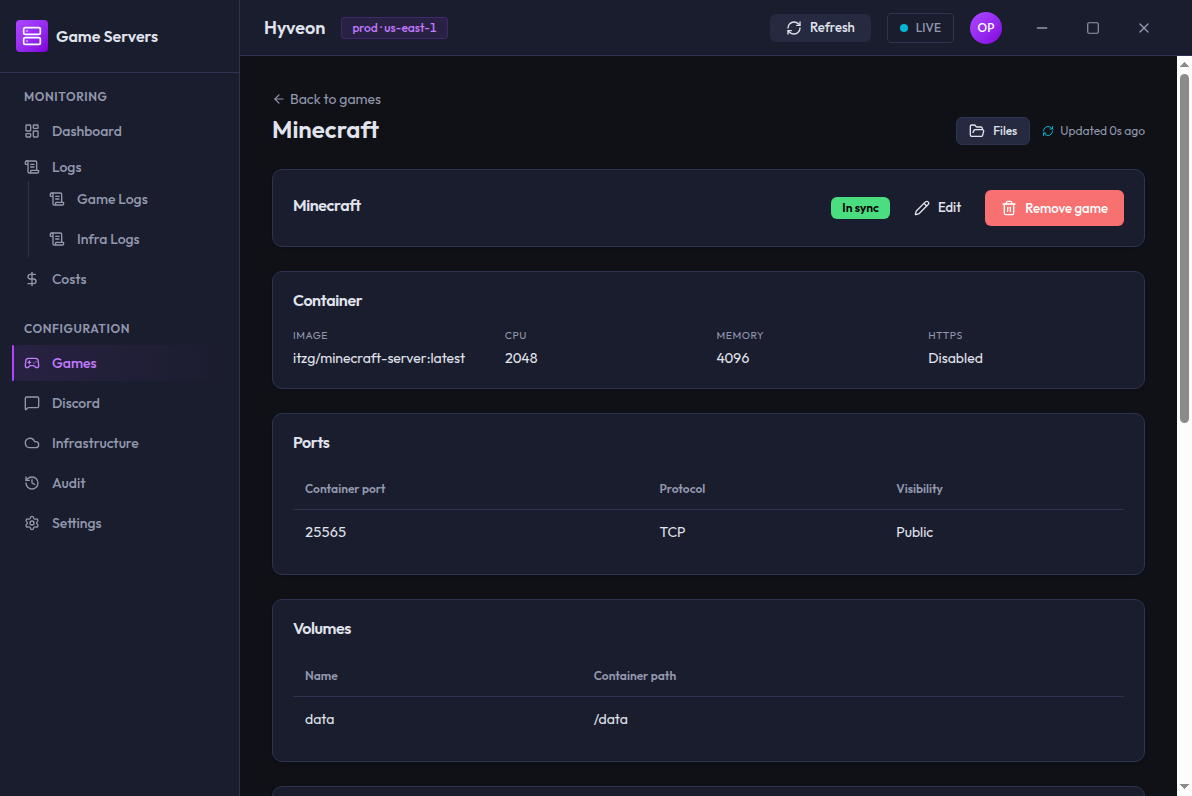
The header carries the game name, a Files link to the in-app file browser, its status chip, and — for declared games — Edit and Remove game buttons. Clicking Edit swaps both buttons out for a single Cancel button for the duration of the edit; Cancel discards the in-progress edit and swaps Edit/Remove game back in, without prompting for confirmation. Below that:
| Card | Contents | Shown |
|---|---|---|
| Container | Image, CPU, Memory, HTTPS (Enabled / Disabled) | Always |
| Web port | The web port the Caddy sidecar proxies to, with a note that it is served publicly on 443 and not directly reachable | HTTPS games with a web port |
| Ports | Container port (or ICMP type, for an icmp row), protocol and visibility per row. Titled Additional ports on an HTTPS game | Always, except an HTTPS game with no additional ports |
| Volumes | Name and container path per row | Always |
| Environment variables | Name/value pairs | Only if any are declared |
| File seeds | A collapsed 3 files seeded at task start summary; expand for the paths (and modes). Contents are never shown | Only if any are declared |
| Connect message | The raw message template | Only if set |
| Seed from folder | The folder picker, include tree, destination, Upload folder action and progress meter — see Seeding a volume from a folder | Declared games only |
The ghost-entry variant
If you open the detail page for an Undeclared game, none of those cards appear. Instead:
This game is deployed but has no entry in the configuration object — there is no declared configuration to show.
Edit and Remove game are not rendered at all, because there is nothing declared left to edit or remove. The way to clean it up is to run a plan and apply from the Infrastructure page, which destroys the orphaned AWS resources.
If you navigate to a name that exists in neither place you get
No game named "foo" was found.
Files
The in-app file browser (route /games/:name/files) lets you browse and change a game's EFS volumes without leaving the app.
Everything goes through the app: no external browser opens and no password is shown.
The app talks to a short-lived helper task, and only the Electron main process does so, over TLS pinned to a certificate created for that one launch.
See Seeding a volume from a folder for the same helper's upload side.
You reach it two ways:
| From | What happens |
|---|---|
| The Files button in the game detail page's header | Opens the page and shows the session's current state. It does not start a helper |
| The Files button on the dashboard's game card | Opens the page and starts a session if it is stopped or failed. It does not touch a session that is already starting, running or orphaned |
Opening the page by any other route, such as typing the URL or pressing Back, never starts a helper. If the game has not been deployed, the page shows Nothing to browse yet ("This game's volume doesn't exist yet. Apply the infrastructure first.") and nothing else.
The session bar
The bar at the top of the page shows a state badge and the actions that state allows.
| State | What you see | Actions |
|---|---|---|
| Stopped | "The file browser session is not running. Start it to browse this game's volumes." | Start |
| Starting | "Starting the file browser session…" The page refreshes every 3 seconds until the session is running or fails | None |
| Running | The listing, plus Up <time> and Auto-stop in <time> | Stop |
| Stopping | "Stopping the file browser session…" | None |
| Orphaned | "A previous file browser session is still running. Restart it to browse." A helper is running for the game but this app instance holds no session for it, for example after the app restarted | Restart only. It stops that helper and launches a new session |
| Failed | The failure reason (or "The session failed.") and "The file browser session is not running. Start it to try again." | Start |
| Not deployed | The page described above | None |
While the session runs the page re-reads its state every 30 seconds, and straight away when a file operation reports the helper is unreachable or gone or when the auto-stop countdown reaches zero. A helper that disappeared (the 2-hour auto-stop, a crash) therefore turns the badge to Failed with the stop reason and offers Start. If the page can't attach to the session at all, it shows the error with a Retry button instead of the loading message.
Once the auto-stop countdown drops under 10 minutes, a "The session stops automatically soon." warning appears beside it. Long transfers can outlive the 2-hour auto-stop, so watch for it before starting a big upload or download.
Stop asks for confirmation ("Stop the session? This cancels the running transfer.") whenever any upload or download is running, folder uploads included. Otherwise it stops immediately. A failed Start, Stop or Restart shows its message under the bar.
How long the helper lives:
- While the page is open it holds the session.
- Leaving the page releases it after a 5-minute grace period, and coming back within that time reuses the same session instead of launching a new one. A folder upload that is still running keeps the helper up past the grace period, and the helper stops once that upload finishes.
- Quitting the app stops every helper it owns (it waits up to 5 seconds, then quits anyway).
- The helper's own 2-hour auto-stop stays as the backstop if the app crashes. If you reopen the page after a crash you will see Orphaned.
Browsing a volume
| Control | Behaviour |
|---|---|
| Volume picker | One entry per declared volume, as the volume name followed by its container path, such as data (/data). A volume the helper could not mount yet is listed but disabled with "Apply the infrastructure to browse this volume."; run plan and apply from Infrastructure. A game's legacy unnamed volume appears as Default volume. Switching volumes returns to that volume's root |
| Breadcrumb | The volume's name, then each folder down to the current one. Every ancestor is clickable |
| File table | Columns Name, Size, Modified, Actions. Click a column header to sort, and click it again to reverse. Folders always list before files. A modification time the volume doesn't report shows —. An empty directory shows "This folder is empty." |
| New folder | Prompts for a name in the current directory |
| Upload files | Opens a native file picker; the chosen files land in the current directory |
| Upload folder | Opens a native folder picker and runs the folder upload into the current directory of the selected volume, with its progress meter below the listing. It does not change the folder selection saved on the game card |
| Drag and drop | Drop files from your desktop onto the listing to upload them into the current directory |
| Row Download | Opens a native save dialog. A folder downloads as an archive; the button is hidden for folders when the helper cannot build archives |
| Row Edit | Opens the text editor (below). Shown only for files of 1 MiB or less |
| Row Rename | Prompts for a new name |
| Row Delete | Asks for confirmation: Delete <name>?, or Delete <name> and everything in it? for a folder, then "This can't be undone." |
Names for new folders and renames can't be empty, . or .., can't contain / or \, and can't be longer than 255 bytes.
A name that already exists is refused and nothing is overwritten.
Uploads and downloads appear in a Transfers list under the table with a progress bar, a Cancel button while running, and the outcome (Done. Saved as <file>, Cancelled. or Failed. with the reason).
The listing refreshes by itself when an upload finishes.
Editing a text file
Edit opens the file in a dialog if it is valid UTF-8 and at most 1 MiB.
Anything bigger, or not text, shows "This file can't be edited here. Download it instead." with a Download button.
Saving is refused if the file changed on the volume since you opened it ("The file changed on the volume since you opened it."), and your edits stay in the editor so you can copy them out.
After a successful save the dialog shows Saved..
If the session ends while the editor is open, the dialog stays with your text, Save is disabled and a note says the session ended, so you can copy the text out before closing.
Read-only while the server runs
The file browser and the game server use the same volume, so changing files under a running server could corrupt its data. While the game's server is starting or running, New folder, Upload files, Upload folder, drag and drop, Rename, Delete and the editor's Save are disabled, and a banner reads "The server is running. Stop it to change files." Browsing, Download and opening a file in the editor still work.
If the app can't tell whether the server is stopped, it assumes it is not. The same actions are disabled and the banner reads "Couldn't confirm the server is stopped." with a Retry button. The main process enforces the same rule, so a change you send just as the server starts is refused rather than applied.
Seeding a volume from a folder
Seed from folder copies a directory tree from your computer onto one of the game's EFS volumes. It appears in two places: the wizard's Storage step (to choose what to upload) and the game detail page (to choose, upload and watch progress). Inline file seeds are unchanged and still run at first server start.
Choosing the folder
- Click Choose folder. The native folder dialog opens, and the app scans your choice. Symbolic links are skipped, and the summary says how many.
- The scan appears as a tree. Everything is included by default. Each directory shows the total size of its files; each file shows its own size.
- Tick or untick entries. Unticking a directory excludes everything under it. A directory with only some children included shows the mixed state, and clicking it includes all of them.
- Set Destination in container.
It defaults to the first volume's path.
It must be an absolute path inside one of the game's volume paths, with no
.or..segments, or the field shows an error and Upload folder stays disabled. - The summary line reads like
3 files selected, 1.0 KB of 3 files (1.0 KB) in the folder.
The layout beneath the chosen folder is kept beneath the destination: with /data as the destination, Config/a.json lands at /data/Config/a.json.
The selection (folder path, included entries and destination) is saved per game on this computer, not in deployment-config.json.
It survives closing the app: reopening the game page re-scans the folder and restores the ticks and destination.
Choosing it on another computer means choosing it again.
In the wizard the selection is saved under the game's name as you go, so resuming a draft restores it.
If you rename the game before submitting, the selection is saved again under the final name on submit.
Uploading
Upload is a separate step from the wizard, because the volume does not exist until the infrastructure is applied. After you run plan and apply from Infrastructure, open the game page and click Upload folder.
| Situation | What you see |
|---|---|
| The game is not deployed yet | Upload folder is disabled with "This game has not been deployed yet. Apply the infrastructure first; your selection is kept." |
| The game server is running or starting | Disabled with "The game server is running. Stop it before uploading." |
| No folder chosen, nothing included, or an invalid destination | Disabled |
| The destination is in a volume that isn't mounted yet, or you haven't applied since upgrading (uploads into any volume, including the first, are refused until you do) | The upload is refused with Apply the infrastructure to upload into '<volume>'. Your selection is kept. |
| The app can't confirm the server is stopped | The upload is refused with Couldn't confirm '<game>' is stopped. Try again in a moment. The app never assumes a server it can't reach is stopped |
| A file manager session the app doesn't hold is already open for the game (for example one left behind by an earlier run of the app) | The upload is refused with A file manager session is already open for '<game>'. Restart it, then retry. Open the game's file browser page, where the session shows as Orphaned, and click Restart, then retry. A session the app itself opened, whether for browsing or for another upload, is reused rather than refused |
The upload takes its own hold on the game's file manager helper, launching one if none is running, and releases only that hold when the run finishes, fails or is cancelled. A helper the upload launched is stopped then, because nothing else holds it; a browse session the app already held and the upload reused stays open until the file browser page releases it and its grace period ends. The upload lands in the volume that owns the destination: a destination inside the second volume's path is written to the second volume, not the first. The helper mounts all of the game's applied volumes, but only the destination's volume is written to. The helper accepts connections only from your current public IP, over TLS with a certificate created for that one launch. Neither the helper's password nor any file contents reach the page.
The progress meter
While a run is active the card shows a meter and locks the folder controls.
| Phase | Meaning |
|---|---|
| Starting helper | Launching the helper task. No percentage yet |
| Waiting for confirmation | Some files you are uploading already exist on the volume with a different size. Nothing has been written yet; the meter shows the warning described below and waits for your answer |
| Uploading | Copying files, up to four at a time. Shows percent, bytes done of total, files done of total, the current file, the transfer rate and the time left |
| Verifying | Comparing the volume against your selection. The bar holds at 99% until this passes |
| Done | Every selected file is on the volume with the expected size. Shows the file count and total size |
| Failed | The error message, plus Resume upload |
| Cancelled | Files already copied are kept. Resume upload continues |
Cancel is available while the run is starting, uploading or verifying; while it waits for confirmation, the warning's own Cancel does the same job. A failed verification lists up to five missing or size-mismatched paths, then "and N more", and offers Retry upload instead.
Overwrite warning
After the helper is up and before any file is written, the app lists the destination folders on the volume and compares them with your selection. Each selected file is counted as new, identical (already there with the same size, so the run skips it) or a conflict (already there with a different size, so the run would overwrite it). Other files already in those folders are only counted for context and are never touched.
If there are no conflicts, the upload starts without a prompt. If there are, the meter shows "N files on the volume would be overwritten (M identical files will be skipped, K new)", lists up to 20 conflicting paths with their size on the volume and their new size, and offers two buttons:
- Overwrite and upload continues the run and replaces those files.
- Cancel ends the run as Cancelled with nothing written; the upload releases its hold, and a helper it launched is stopped and its IP rule revoked.
The helper stays up while the warning is open, but only for 10 minutes. If you do not answer in that time, the run is cancelled, the meter says so, and the upload releases its hold on the helper (a helper it launched is stopped).
Resuming your own interrupted run does not prompt: when the last run for the same folder, includes and destination failed or was cancelled after copying files, up to four conflicts (the number of files that can be in flight) are treated as that run's partial files. More conflicts than that, a different selection or destination, or a previous run that finished all prompt as usual.
Resuming skips files already on the volume with the right size and overwrites partial ones, so an interrupted 1,033-file upload that reached file 600 uploads only the rest. If the helper's 2-hour auto-stop elapses mid-upload or your public IP changes, the helper becomes unreachable. Each file is retried up to three times on transport errors, and then the run fails; use Resume upload to continue.
The meter picks up where it was if you leave the game page and come back. After you restart the app, the card shows the last run's outcome (for example "Last upload failed ... 600 files, 2.0 KB") with Resume upload for a failed or cancelled run, once the saved folder has been re-scanned. If the folder can no longer be read, choose it again.
Cleaning up stray helpers
If the app exits mid-upload, the helper's own auto-stop is the backstop, and the app also sweeps for helpers older than 15 minutes when it starts. You can run the sweep yourself from Settings → Diagnostics.
Editing a game
Edit replaces the detail cards with a flat form containing the same five sections as the wizard — Identity, Resources, Networking, Storage, Environment — pre-filled from the current declaration. All the same validation applies, but it applies to the whole form at once rather than step by step.
The Name field is disabled. Renaming a game is a delete-and-recreate, not an update: the name is the task-definition family, the EFS access-point key, the log-group name and the DNS label. Remove the old game and add a new one if you need a different name.
https has the same toggle here as in the wizard's Networking step, including the Web port field and the Additional ports (optional) list that appear when it is on, and the
same health-check block sits below it — enable/disable, request/condition
fields, and the credential-type selector with its per-type fields, identical
to Step 3 of the wizard (including "a credential is already set" next to the
selector, and every credential field rendering blank rather than echoing back
a previous value). environment is directly editable here too, in its own
Environment card — the same row editor (Variable name / Value, no
minimum row count), the same ${hyveon.*} token interpolation, and the same
Start command editor as the wizard's Step 5, followed by the same Pin hostname switch with its Node.js-only caveat, loaded on if the game already has a pinned hostname.
Above the save button:
Saving only updates
deployment-config.json— visit Infrastructure to apply this change to the live server.
Save changes writes the versioned JSON configuration object
(deployment-config.json, in your S3 configuration bucket) and returns you
to the read-only view with the new values — it does not touch AWS by
itself. A separate plan/apply run from the Infrastructure page
is still required to make the change live, the same as adding a game. Ports
declared in this form are checked against every other game, so a game
never collides with itself.
Removing a game
Remove game opens a confirmation dialog:
Remove minecraft?
This deletes the
minecraftentry fromdeployment-config.json. The deployed AWS resources stay live until an operator applies the change from the Infrastructure page.
Below the text is a single input whose placeholder is the game's own name. You must type the game name exactly — the match is case-sensitive and untrimmed — before the Remove game button becomes clickable.
On success you get minecraft removed from deployment-config.json and are returned
to the games list, where the game now shows as Undeclared until you run a
plan and apply.
Concurrent-edit conflicts
The app stores your deployment configuration as a versioned object in your S3 configuration bucket (there is no local-file mode), and can guard writes with an optimistic-concurrency check: the write carries the object version the app last read, and S3 rejects it if someone else has written since. That surfaces as:
Optimistic lock failed: expected etag "abc123" but remote is now "def456".
There is no automatic retry. Reload the games list to pick up the newer state and redo your change.
One honest caveat about this mechanism as it stands:
- The app's own screens do not currently opt in. The wizard, the edit form and the remove dialog all issue unconditional writes, so in practice you will not see this error from the UI today. The plumbing exists end to end and is exercised by the test suite; the UI simply does not send the expected version yet. If two people are editing the same configuration concurrently, treat it as last-write-wins and coordinate out of band.