Costs
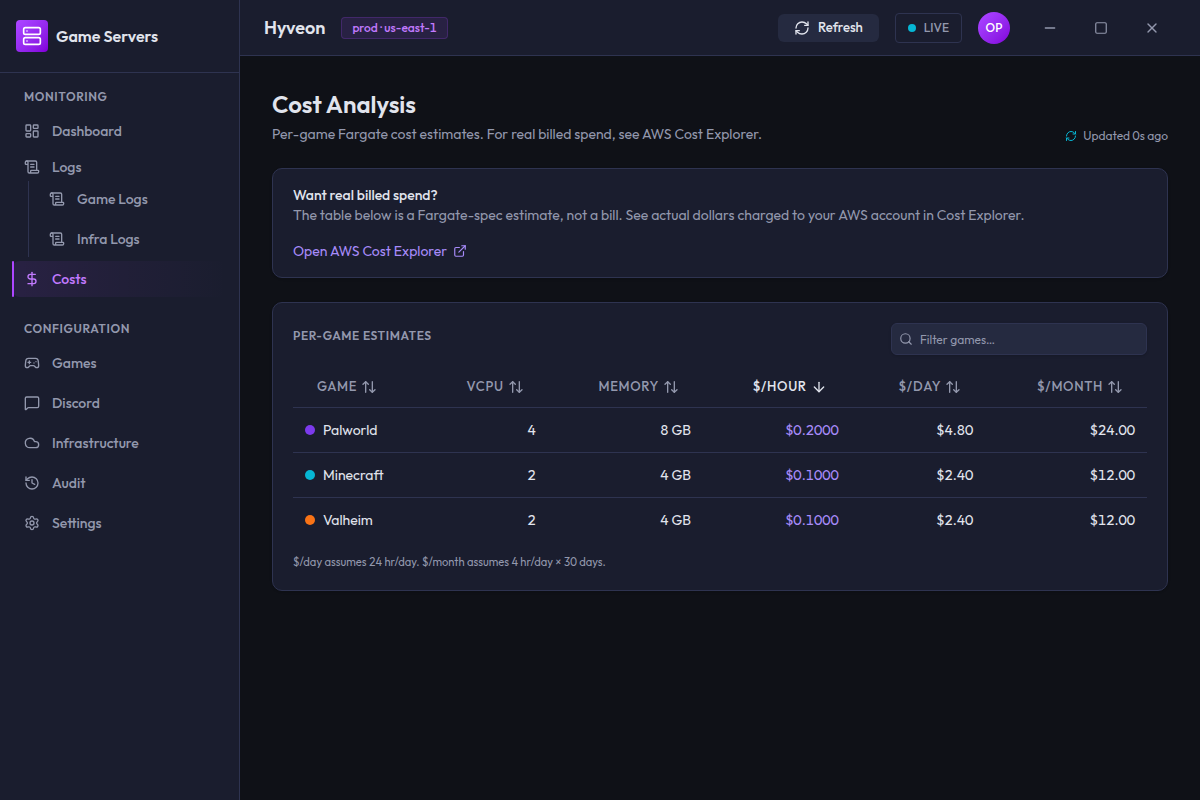
The Costs screen (route /costs) shows what each deployed game costs to run,
estimated from its declared Fargate CPU and memory against published
on-demand rates. The app makes no AWS Cost Explorer API calls, ever — no
automatic fetch, no manual "fetch actuals" button. For real billed spend, use
the AWS Cost Explorer console directly, one click away via the callout on
this page.
Per-game Fargate cost estimates. For real billed spend, see AWS Cost Explorer.
Why no actuals live in the app
AWS Cost Explorer bills $0.01 per GetCostAndUsage request. Earlier versions
of this page called it automatically on every page load and range-selector
toggle, silently charging the operator's AWS bill. That call chain has been
removed end-to-end. The estimates below are computed from each game's ECS task
definition (DescribeTaskDefinition, not a billed API) and are always free.
See real billed spend
A callout card links out to the AWS Cost Explorer console home
(https://console.aws.amazon.com/cost-management/home#/cost-explorer) — a
static link, not a deep link with pre-filled date ranges or service filters
(AWS's query-param format for that is undocumented and could change silently).
Pick your own date range and filters once there.
Every resource Hyveon creates is tagged Project=hyveon. Activate the
Project tag under AWS Billing → Cost allocation tags so you can filter
the console down to a Hyveon-only view — without it, Cost Explorer shows
account-wide ECS/Fargate spend, which includes any other ECS or Fargate
workloads in the same account.
Per-game estimates
A table of what each deployed game costs to run, computed from its declared
Fargate CPU and memory. Rows come from the deployed stack's outputs
(gameNames), not from deployment-config.json directly — if the stack has
never been applied there are no outputs yet, so the table is empty even when
games are configured.
| Column | Contents |
|---|---|
| Game | Name, with its colour swatch |
| vCPU | e.g. 1 for 1024 CPU units |
| Memory | e.g. 4 GB |
| $/hour | Shown to four decimal places when under a dollar |
| $/day | |
| $/month |
Sort by clicking any column header; the default is $/hour descending.
Clicking a new column sorts descending for numeric columns and ascending for
Game; clicking the active column flips the direction.
The filter box in the card header (Filter games…) does a case-insensitive
substring match on the game name.
On a narrow window the table becomes a stack of cards with the same six values. The card stack has no sort controls.
What the day and month figures assume
The footnote under the table states it plainly:
$/dayassumes 24 hr/day.$/monthassumes 4 hr/day × 30 days.
So:
| Column | Formula |
|---|---|
$/hour | vCPU × $0.04048 + GB × $0.004445 |
$/day | $/hour × 24 |
$/month | $/hour × 4 × 30 — that is 120 hours, not a full month |
The two columns therefore answer different questions. $/day is the worst
case if you leave a server up around the clock. $/month is a realistic
monthly bill for a server used a few hours an evening — which is what the
start/stop-on-demand design is built for. Neither is $/day × 30.
Two further caveats:
- These are Fargate compute rates only. They exclude EFS storage, data transfer, Route 53, Lambda, DynamoDB and CloudWatch. Your real bill will be higher.
- The rates are hardcoded us-east-1 on-demand prices. If you deploy to another region, the estimates will be off by that region's premium.
If a game's task definition cannot be read, the estimate falls back to 2 vCPU
/ 8 GB — with no indication in the table that it is a fallback. A row showing
exactly 2 vCPU and 8 GB when you declared something else is the tell.
Estimates are fetched once when the page loads.
When there is nothing to show: No estimates available.
The dashboard's cost tiles
The dashboard shows two related but distinct figures — Current run rate and Est. month cap — computed from the same free per-game estimates as this page, not from this page's table directly. See the dashboard doc for details.